
.svg)



What is Remarketing?
Remarketing is an automatic way of sending ads to people who have visited your website but didn't commit. This is advanced marketing stuff, but it's actually really easy to set up. Everyone should be doing this.
Here's some simple step-by-step instructions (with pictures!) for how to run your first Remarketing campaign on Meta - Facebook and Instagram.
Sometimes people put their phone down halfway through buying and forget, and sometimes it takes 2 or 3 reminders before a person decides to join your community or buy your product. It is enormously powerful, and can provide a huge boost in sales by simply reminding the people who have already thought about buying.
Remarketing is the name of the system that makes sure your warm leads get those reminders.
Steps to set up Remarketing on Meta:
- Make sure the Meta pixel is installed properly on your website, and is set up for conversion tracking. Again, get your developer to do this for you.
- Use Launchbot to make a new low-cost ad for you. You could use the Content Generator to create a post about reminding people what they're missing out on by not using your product. Then click 'Turn into Facebook Ad' and you'll have a high performing Meta ad live in under 4 minutes.
- Once the ad is made, go in to your Meta Ads Manager, click on the Ad Set and click Edit.
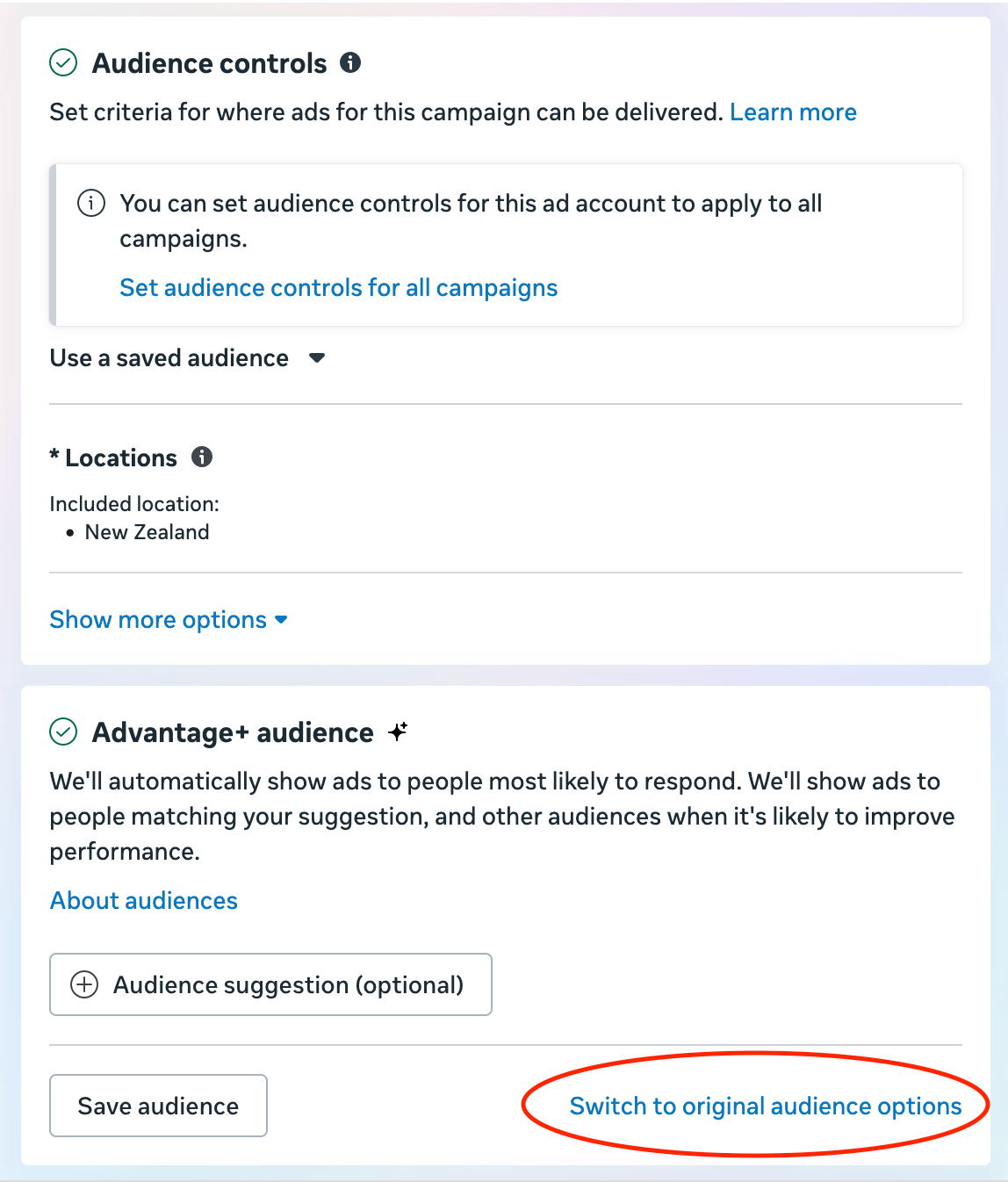
- Under Audience Controls, click Switch to Original Audience Options > Use Original Audience.
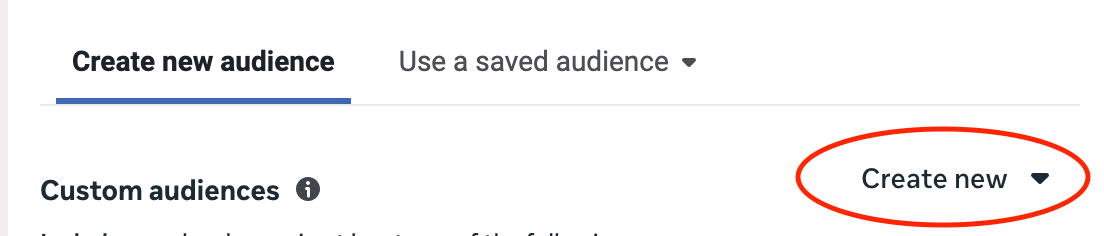
- Under Create New Audience, click Create New > Custom Audience
- Under Your sources, Select Website
- These are the people you will send your Remarketing ads to. Set the Source to the name of your Pixel (there's probably only one option, pick that). Keep Events as All website visitors. Set Audience retention to 60 days. This means, "Remarket to every person who came to my website over the past 60 days".
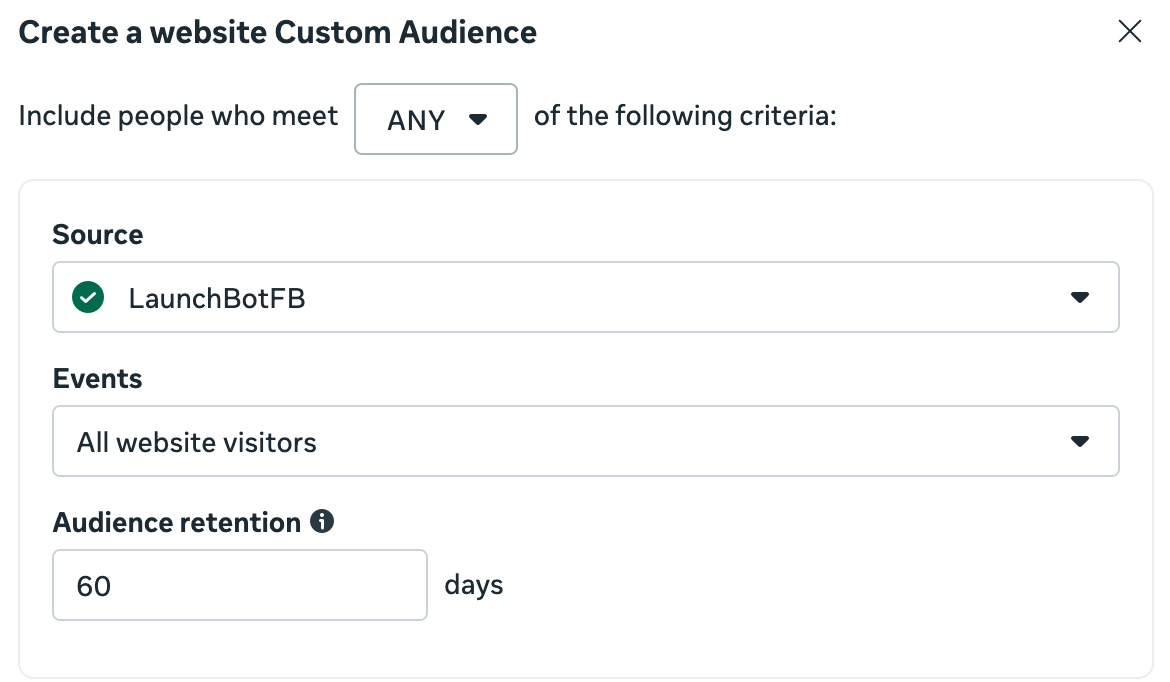
- Give it a name like "Web visitors 60 days" and click Create Audience. Meta will automatically keep this list updated with all your website visitors in a 60 day period.
Exclude existing customers
- But we don't want the reminder ad to go to people who have already joined or signed up! So we'll make a second list to exclude these people.
- In the "Your custom audience was created" screen, click Create another custom audience > Create custom audience. If you've already exited this screen, just go back to step 5.
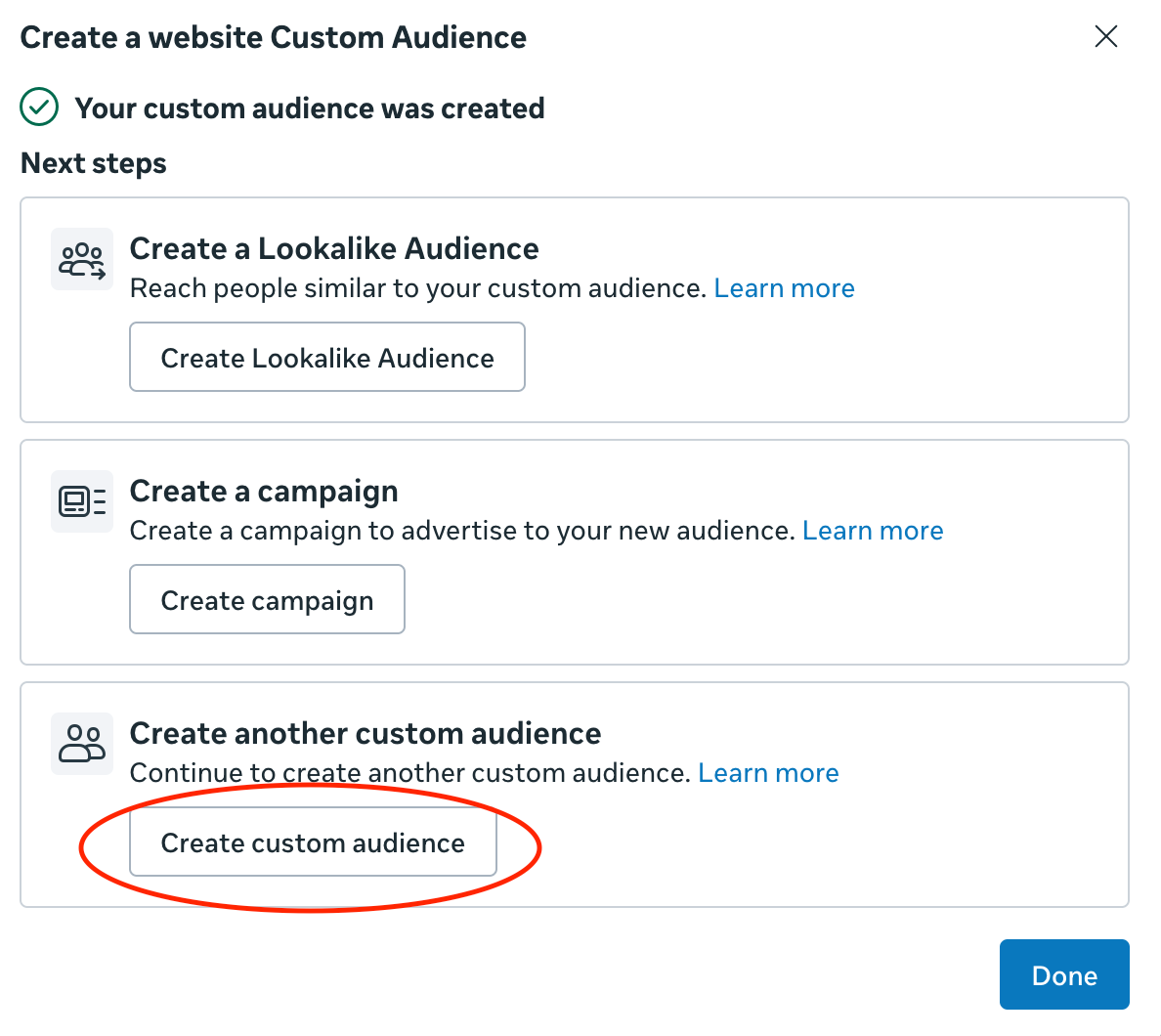
- But this time, instead of selecting 'Website' under Your Sources, select 'Customer list' and click Next.
- In Prepare your customer list just click Next.
- Download your customer, subscriber or sign up list as a CSV from where ever you keep it. Open it in Excel or Numbers. Keep the name, email, city, state and country, if you have this data. You need the email, the others are a bonus. Delete all the other columns. This information helps Meta find the Facebook profiles of your customers, so that it can ensure it doesn't send the ad to them. It doesn't share this information with you, ever, but you need to make sure it's in line with your privacy policy to do this.
- Change the column titles (in row 1) to 'fn' for first name, 'ln' for last name, 'email' for email, 'ct' for city, 'st' for state, 'country' for country.
- Drag the list into the drag and drop section. Keep customer value at No. You can choose an appropriate audience label if you like. Name it something useful, like 'subscribers_dec25'. It's ideal to update this monthly so it's good to include the date.
- Click Next. Make sure the columns are all correct. Select 'Do not upload' for any columns that Meta has a problem with. Click Import and create.
Add custom audiences to your ad set
- Back in Meta Ads Manager, in your Ad Set, under Audience, your "Web visitors 60 days" audience should be sitting in Custom audiences. If not, add it.
- Untick 'Reach more people likely to respond to your ad', and click the X next to the location it's chosen for your ad. You don't want it to target or expand your audience - this ad is just for your website visitors who didn't convert.
- Click Add Exclusions > Search existing audiences, and select the 'subscribers_dec25' list that you just made.
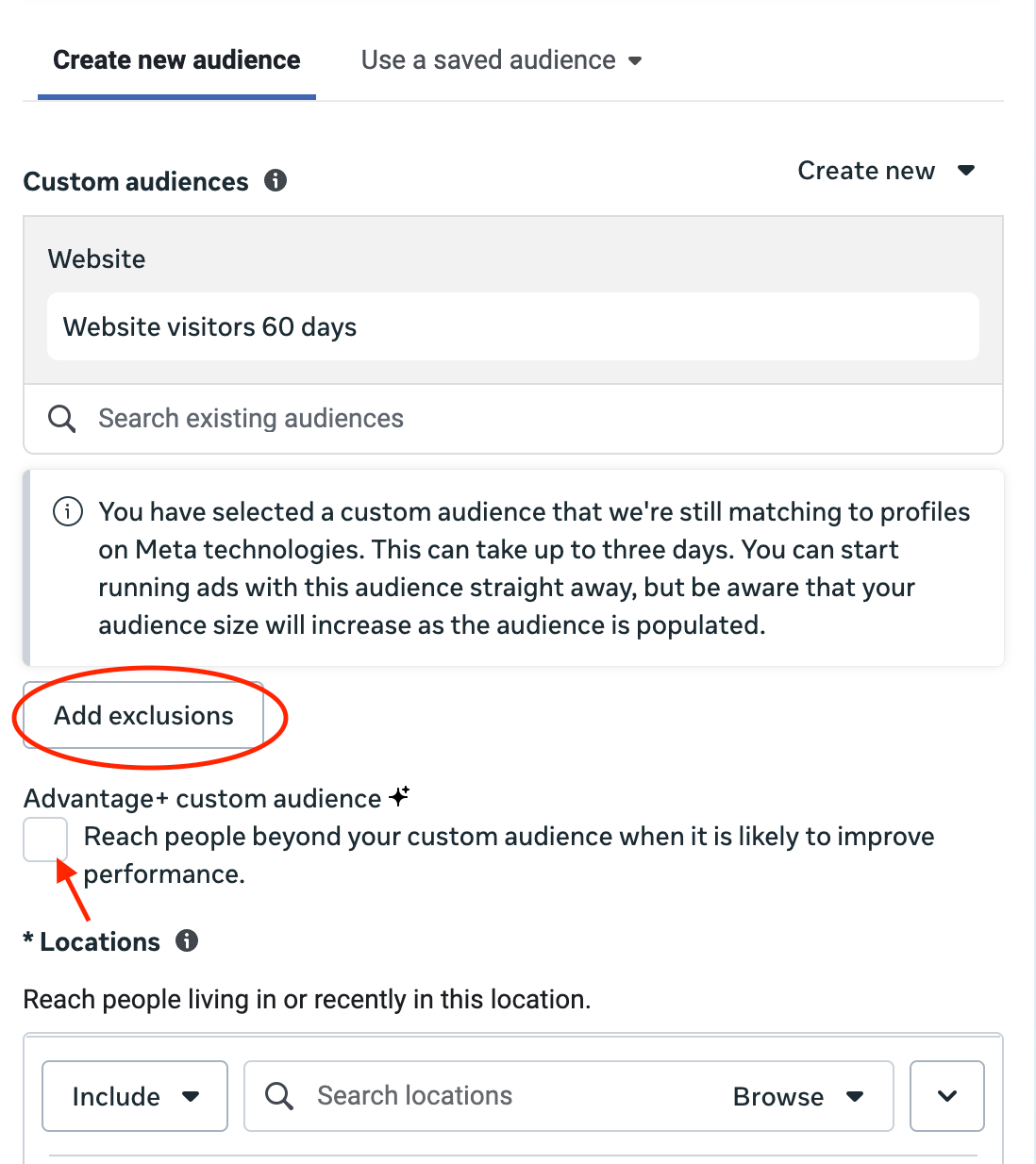
- Fantastic! Now you've set the ad to include all your website visitors over the past 60 days, but exclude all your current customers. So the ad will just go to people who didn't commit, giving them a gentle reminder.
- You can now set the budget low, $3 or $6 a day. Update the customer list monthly, and forget about it.
Well done! You've just set up an advanced Remarketing campaign! Now your warm leads will be reminded that you exist, and your website visitors won't forget about you and that time they were meaning to make a purchase before they got distracted.